
In modern web or app development we need to display the date time with time zone. so many developer store the date UTC format on the database. and send to the front side as client requirement date label. JavaScript provide the JavaScript provides a built-in solution for this through the JavaScript Date object.
This JavaScript date tutorial is provide you to Date object in a practical example, how to get current time, date formats, date flow, how to Read Date Values, Modify date, Formatting Dates for Display so you can confidently work with dates and time in real-world applications.
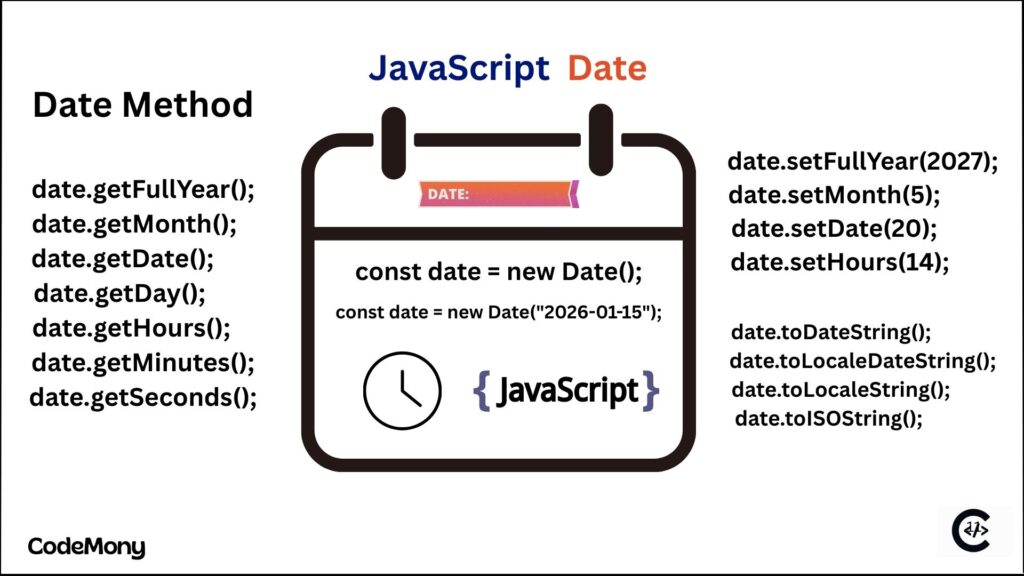
What Is JavaScript Date?
The JavaScript Date object represents a moment in time which is store the milliseconds since January 1, 1970 (UTC) with Unix Epoch, it is allows JavaScript to calculate, compare dates, Create, Read, Modify and format date and time values using Date().
Date object automatically handles the year (leap years), month length (28 0r 30 0r 31), and day using a JavaScript timestamp.
Dates and time handling is part of intermediate JavaScript. Refer to this JavaScript learning roadmap for 2026 fundamentals.
How to Create Dates in JavaScript
JavaScript allow you to date creation many way. such as you need to display clocks, events, store on database, string format.
Current date and time is used full for display date time for clock on web developments.
Date strings is used for received from APIs response data.
Timestamps is used for the database side.
This type of JavaScript date methods is helps you manage user input, backend responses, and stored data.
Read Date Values
If a Date object created then you can use the methods to extract individual parts of the Date. Month is start from 0 end with 11. Manse January is 0 and December is the 11.
Day : Get the day of date object.
Month : Get the month of date.
Year : Get the full year of date object.
Day of the week : Get the Total day of week.
Hours, minutes, and seconds : You can Get the JavaScript HMS date format.
Modifying Dates and Time
Once Date is created We can modify the date and time based on over requirement. You can add or subtract days, change months, or adjust JavaScript time values.
For example You have to Subscription renewals, Update the Booking systems, Countdown timers also need to Reminder notifications based on current JavaScript timestamp.
We will see on date modification example with complaint reminder using scheduleFollowUp function which is accept date and this function check business day and if day is not business then it is skip the Saturday and Sunday and set reminder using JavaScript Date format.
Understanding the Date is much easier when your JavaScript fundamentals are strong. Many date feature such as event scheduling or activity logs required loops. you may find these guides useful: JavaScript forEach Loop and JavaScript For Loop with Examples.
function scheduleFollowUp(startDate) {
  let followUp = new Date(startDate);

  let businessDaysAdded = 0;

  while (businessDaysAdded < 3) {
    // Move to next day
    followUp.setDate(followUp.getDate() + 1);

    const day = followUp.getDay();

    // Skip Saturday and Sunday
    if (day !== 0 && day !== 6) {
      businessDaysAdded++;
    }
  }

  // Set reminder time to 10:30 AM
  followUp.setHours(10, 30, 0, 0);

  return followUp;
}

// Example usage
const complaintSubmittedAt = new Date("2026-01-10T16:45:00");
const reminderDate = scheduleFollowUp(complaintSubmittedAt);

console.log("Follow-up reminder:", reminderDate.toString());
In this example If the complaint is submitted on Friday, the reminder will be set on Wednesday at 10:30 AM, not Monday.
Working with JavaScript timestamp
Timezone the most confusing topic of JavaScript Date, Basically default JavaScript display the date is local timezone which is used on your system. Event is stored on UTC format.
If you want to avoid timezone issues. You must store the UTC Data format on database and Convert date when you need to display, Also Only use the ISO date string format for API and databases.
JavaScript date formatting for Display
Many times developer need to format the date on specific client requirements. JavaScript offers built-in formatting options to display dates. You can format date based on local, region so Your application is accessible for word wide web.
There are many option for formatting the date using toLocaleDateString(). First one is timestamp and another are parameter weekday, year, month and day.
toLocaleDateString() formats the date based on language and region
“en-US” sets the format to U.S. English
weekday, month, and year options make the date readable format.
If you want to format the date on advance level you can use the Moment Date Format Library Also, You can use the core logic of JavaScript.
Example: Displaying Today’s Date in a Readable Format
const todayDate = new Date();

const formattedTodayDate = todayDate .toLocaleDateString("en-US", {
  weekday: "long",
  year: "numeric",
  month: "long",
  day: "numeric"
});

console.log(formattedTodayDate);
Output
Saturday, January 1, 2026.How This JavaScript Date Works
In this example toLocaleDateString() formats the date based on language and region. “en-US” means U.S. English date, weekday, month, and year are the date format Options.
Why JavaScript Date Is Useful
Date() is useful for getting the date or create the new date.
Date modify is use for a user profile display date like a last seen, post, profile add or update date with time.
It is useful for Dashboards web application.
Mostly use full for the an Event listings.
It automatically adjusts for different regions and avoids manual formatting errors. so it is developer friendly.
JavaScript date format yyyy-mm-dd
The javascript date format yyyy-mm-dd is the best way yo display the date with number.
yyyy stands for the full four-digit year,
mm represents the month (start from 01 to 12),
dd indicates the day of the month (from 01 to 31).
This format is use many developer because it is simple, easy to understand and and is compatible with HTML date inputs and databases.
Example: Converting a JavaScript Date to yyyy-mm-dd Format
// Create a today date object
const today = new Date();

//convert  date to the ISOString format and split with T.
const formattedDate = today.toISOString().split('T')[0];

console.log(formattedDate);
 // Example output: 2026-01-12
In this example, the date 2026-01-12 shows:
Year: 2026
Month: 01 (January)
Day: 12 (Monday)
JavaScript Date Comparison
The JavaScript Date Comparison is process of Comparing date before, after, or is equal to another date by comparing their time values. JavaScript converts dates into milliseconds since January 1, 1970 (UTC). Which is provide the accurate result.
Example : Comparing Two Dates
const date1 = new Date("2025-06-10");
const date2 = new Date("2026-01-12");

if (date1 < date2) {
  console.log("date1 is earlier than date2");
} else if (date1 > date2) {
  console.log("date1 is later than date2");
} else {
  console.log("Both dates are the same");
}
Output : Comparing Two Dates
date1 is earlier than date2